![cc5404e7b75e6d484a23b7d9f19a2774.png]](https://support.arworkflow.com/hs-fs/hubfs/cc5404e7b75e6d484a23b7d9f19a2774.png?height=50&name=cc5404e7b75e6d484a23b7d9f19a2774.png)
Monitor each of your outstanding invoices by viewing their activities without ever leaving the Aging Report!
1. Navigate to the Aging Report tab.
2. Click the three dots icon for the customer.

3. Choose History from the list.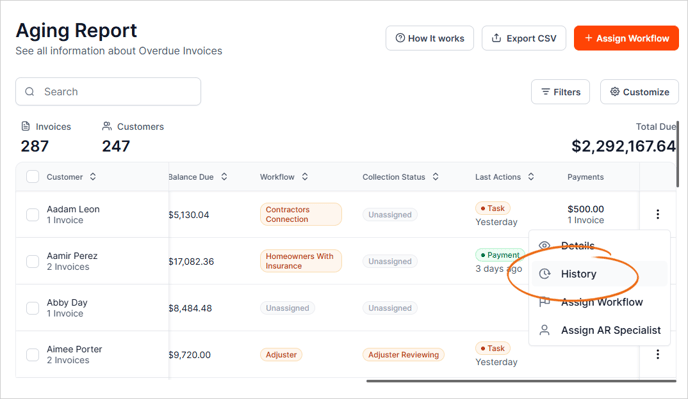
4. Within the Activity box, you will find:
- All Activities
- Call Log
- SMS
- Notes
- Task Log
- Payment Activity
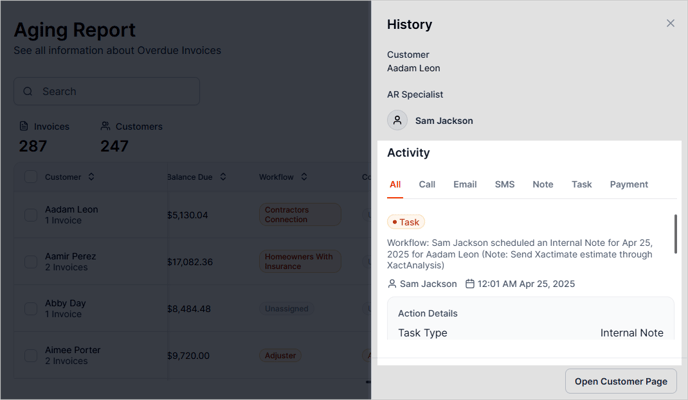
Activity
You will see the list of all the activities performed for this customer.

Call
The Call Log lists all calls logged calls for this customer. These can be inbound, outbound or voicemails. All calls are recorded, and you can download the conversation or listen directly from the software.

Email
View all inbound and outbound emails for the customer. If you want to view the actual email, click the See More.
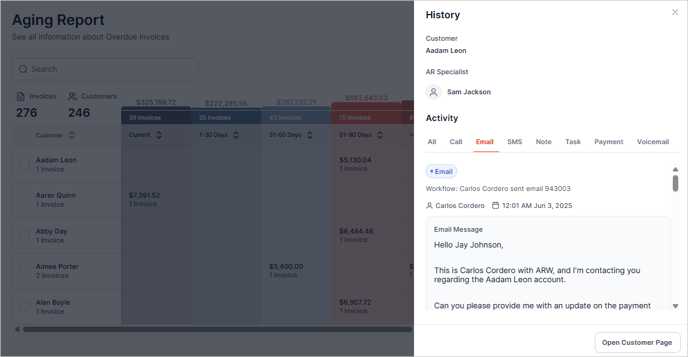
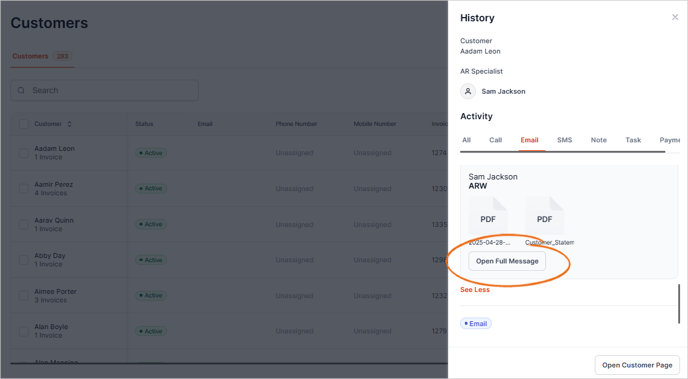
Hit the Open Full Message button to view the complete email. Here is an article on How to Create Email Templates
SMS
The SMS tab shows inbound and outbound text messages between staff and customer. Like the Email tab, you can view the actual SMS sent to the customer by clicking the SMS preview. Once you click the SMS preview, you will be redirected to the SMS tab where you can view the full conversation and send a follow up text message. Here is an article on How to Create SMS Templates

Note
The Notes tab houses all the notes that were created for the customer. You can make a note directly by typing in the text box. Tag a coworker by typing their name after the @ symbol, as shown below.

Payment Activity
Under the Payment Activity tab, you will see all the transactions performed for this customer. If the payment was pulled from QuickBooks, it will be notated in the payment preview.
