![cc5404e7b75e6d484a23b7d9f19a2774.png]](https://support.arworkflow.com/hs-fs/hubfs/cc5404e7b75e6d484a23b7d9f19a2774.png?height=50&name=cc5404e7b75e6d484a23b7d9f19a2774.png)
Show only the columns you need in the order you want.
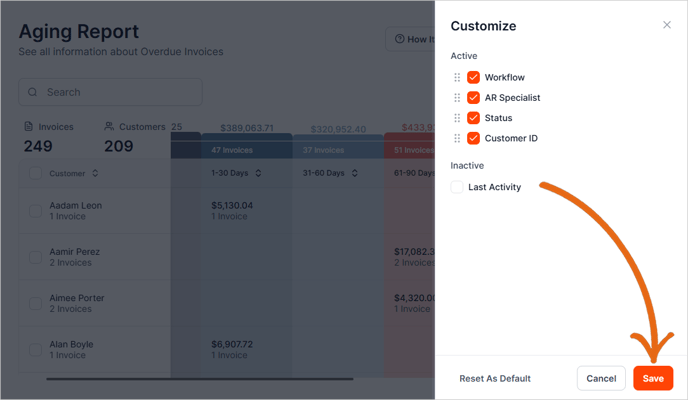
Adding or Removing Columns
To add or remove columns from the Aging Report,
1. Click Customize in the top right corner of the Aging Report.

2. Select the columns you want to display in your Aging Report table.

3. Once you are done, click Save.
Arranging the Columns
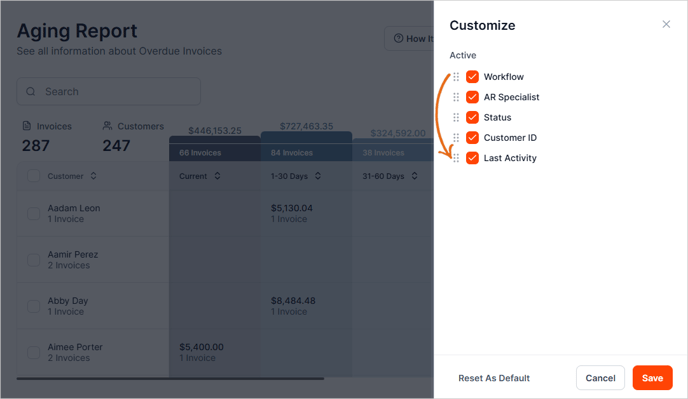
You have the option to arrange the following columns to fit the view that works best for you:
-
Workflow
-
AR Specialist
-
Status
-
Customer ID
-
Last Activity
1. Click and drag the column to match your desired order.
2. Once you are done, click Save.