![cc5404e7b75e6d484a23b7d9f19a2774.png]](https://support.arworkflow.com/hs-fs/hubfs/cc5404e7b75e6d484a23b7d9f19a2774.png?height=50&name=cc5404e7b75e6d484a23b7d9f19a2774.png)
The Tax Override feature gives you more control over how sales tax is applied to an individual Invoice, Estimate, or Credit Memo. Instead of being limited to the standard tax rate configured in your account, you can manually enter the exact tax amount or tax percentage that should apply to a specific transaction. 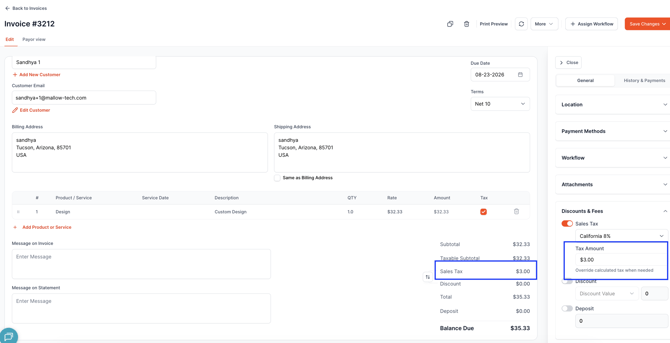
Why Use Tax Override?
Tax Override can help when a transaction requires a custom tax calculation without creating a new tax rate.
- Efficiency: Avoid creating a new tax rate for every unique tax calculation.
- Accuracy: Enter the exact tax amount required for a specific transaction.
- Flexibility: Apply a custom tax amount or percentage when the standard tax rate does not apply.
- Consistency: Keep transaction tax amounts aligned between AR Workflow and QuickBooks Online.
- Reduced rounding differences: Enter the required tax amount directly when a calculated percentage could result in rounding differences.
Where Can Tax Override Be Used?
Tax Override can be applied to:
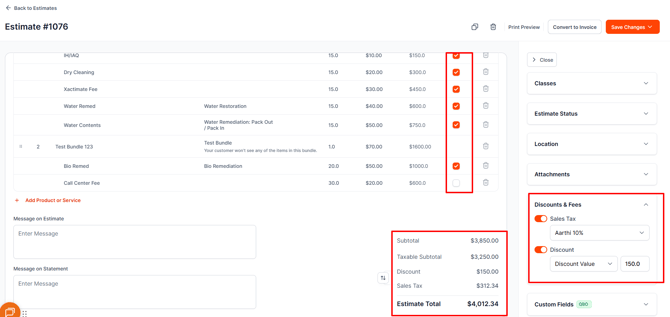
- Estimates
-
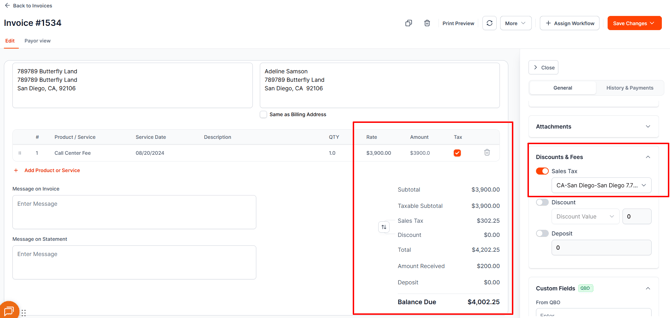
Invoices
-
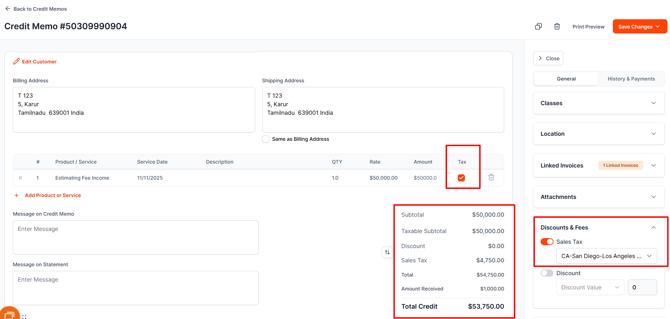
Credit Memos
How to Apply a Tax Override
- Open the relevant Invoice, Estimate, or Credit Memo.
- Navigate to the Discount & Fees section.
- Select Override the Tax.
- Enter the desired Tax Value or Tax %.
- Review the updated tax amount.
- Click Save to apply the changes.
The system will update the transaction based on the override value entered.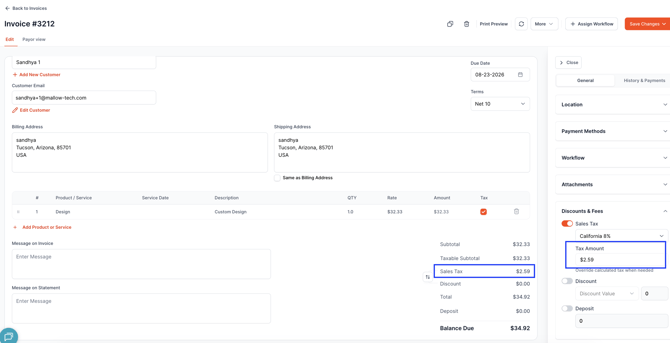
Tax Value vs. Tax Percentage
When applying a tax override, you can enter either:
- A specific tax dollar amount, or
- A specific tax percentage.
This gives you flexibility depending on how the tax was calculated for the transaction.
For example, if the required tax amount is known, you can enter the exact dollar value rather than relying on the system to calculate the amount from a standard tax rate.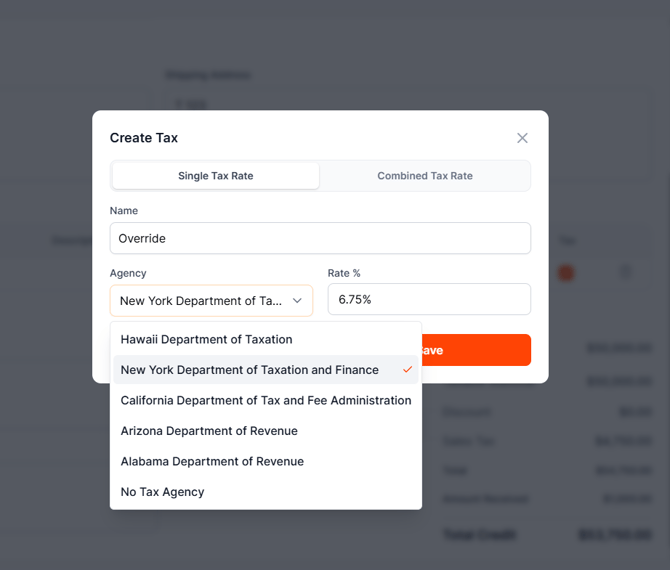
Sync Behavior
Tax Override works with the existing AR Workflow and QuickBooks Online sync process.
Outbound Sync
When a tax override is applied to a transaction in AR Workflow, the custom tax information will sync to the connected QuickBooks Online account.
Inbound Sync
If a tax override is created directly in QuickBooks Online, the override will be reflected in AR Workflow after the next successful sync.
This helps keep the tax information consistent between the two systems.
Validation
AR Workflow includes validation to help prevent invalid tax override values.
For example:
- Negative tax amounts are not allowed.
- Invalid or out-of-range values will trigger a warning.
- The transaction must contain a valid tax value before the override can be saved.
If a warning appears, review the value entered and make the necessary correction before saving.
Important Considerations
- A tax override applies to the specific transaction where it is entered.
- Using a tax override does not require you to create a separate tax rate for that transaction.
- Make sure the tax amount or percentage entered matches the amount you intend to use in QuickBooks Online.
- Allow the sync to complete before verifying the transaction in QBO.
Best Practices
Before applying a Tax Override, make sure your QuickBooks Online connection is active and review the transaction carefully to confirm the correct tax amount before saving. After saving the override, verify that the updated tax information has synced correctly to QBO. You can also use the Audit Logs to see when a tax override was applied and which user made the change. When a custom tax calculation is only needed for a specific transaction, consider using Tax Override instead of creating a new tax rate that may only be needed once.
Frequently Asked Questions
Can I use Tax Override on any transaction?
Tax Override is available for Invoices, Estimates, and Credit Memos.
Can I enter a dollar amount instead of a percentage?
Yes. You can enter either a specific tax value or a tax percentage.
Will the tax override sync to QuickBooks Online?
Yes. Tax overrides applied in AR Workflow will sync outbound to the connected QuickBooks Online account.
What if I create the tax override in QuickBooks Online?
The override will be reflected in AR Workflow after the next successful sync.
Can I enter a negative tax amount?
No. Invalid values, including negative tax amounts, are prevented by the system.
Do I need to create a new tax rate for every custom tax calculation?
No. Tax Override allows you to apply a custom tax amount or percentage directly to the transaction without creating a new tax rate.
How can I see who applied a tax override?
You can use the Audit Logs in AR Workflow to review when the override was applied and which user made the change.