![cc5404e7b75e6d484a23b7d9f19a2774.png]](https://support.arworkflow.com/hs-fs/hubfs/cc5404e7b75e6d484a23b7d9f19a2774.png?height=50&name=cc5404e7b75e6d484a23b7d9f19a2774.png)
What You Can Do
Depending on the communication type, you can:
- Send Now to send the communication immediately.
- Pick a Time to schedule the communication for a specific future date and time.
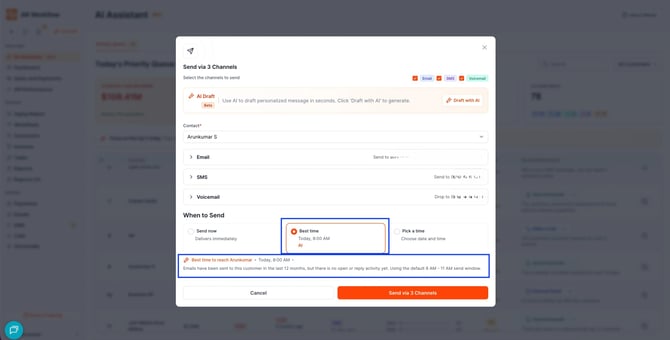
- Use Best Time for Email to get an AI-suggested send time based on available customer engagement history.
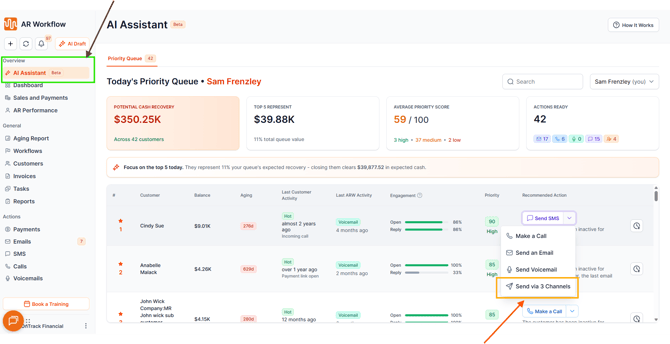
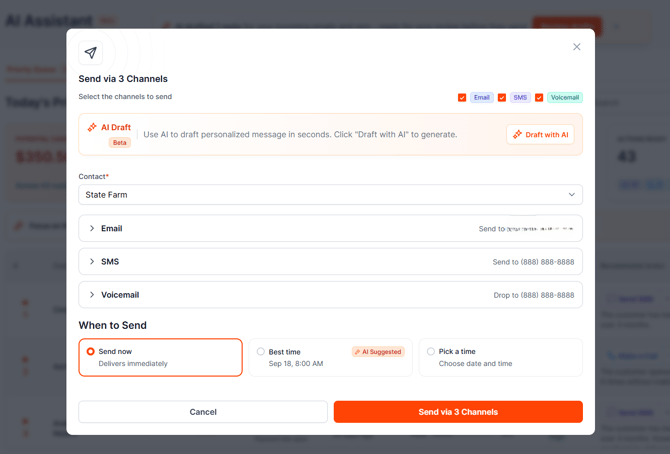
- Use Send via 3 Channels from the AI Assistant to access Email, SMS, and Voicemail options from one place.
Where to Find These Options
AI Assistant → Priority Queue
- Navigate to AI Assistant → Priority Queue.
- Select Send an Email, Send SMS, Send Voicemail, or Send via 3 Channels.
- The communication composer opens with the scheduling options available for the selected communication.
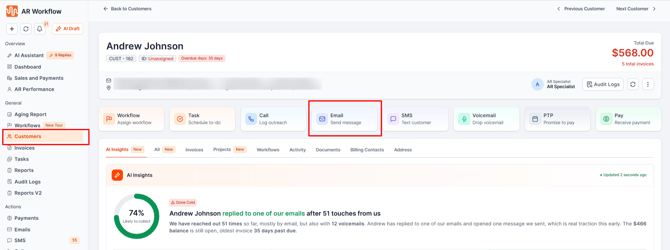
Customer Details → Email
- Navigate to Customers.
- Select the customer.
- Open Customer Details.
- Select the Email action card.
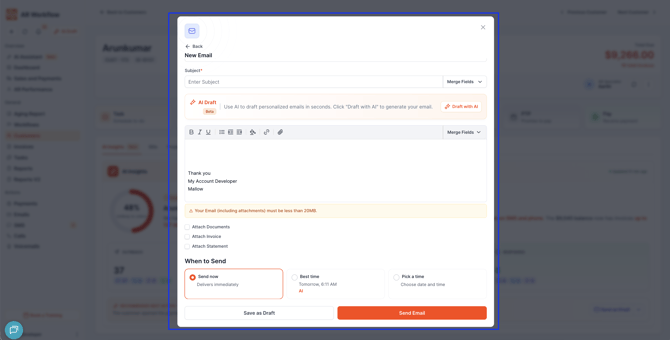
- The Email Composer opens with:
- Send Now
- Best Time
- Pick a Time
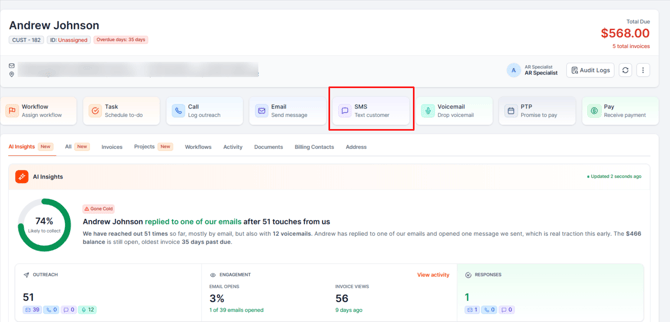
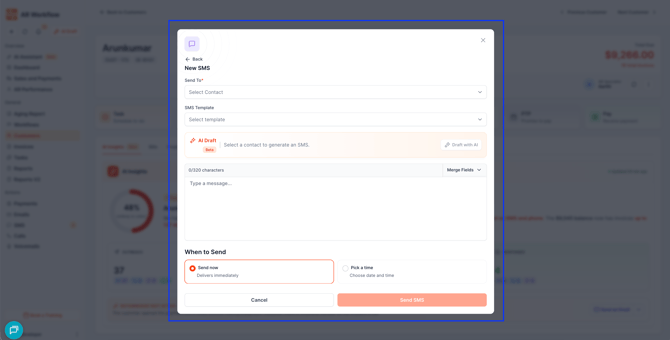
Customer Details → SMS
- Navigate to Customers.
- Select the customer.
- Open Customer Details.
- Select the SMS action card.
- The SMS Composer opens with:
- Send Now
- Pick a Time
Note: Best Time is not available for SMS.
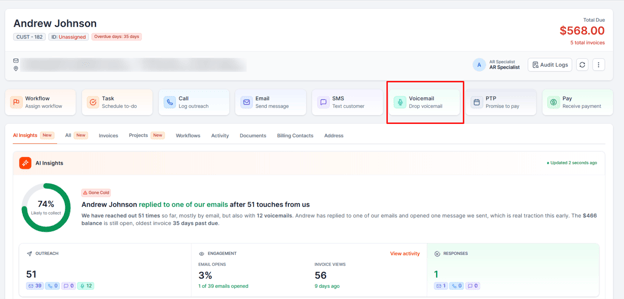
Customer Details → Voicemail
- Navigate to Customers.
- Select the customer.
- Open Customer Details.
- Select the Voicemail action card.
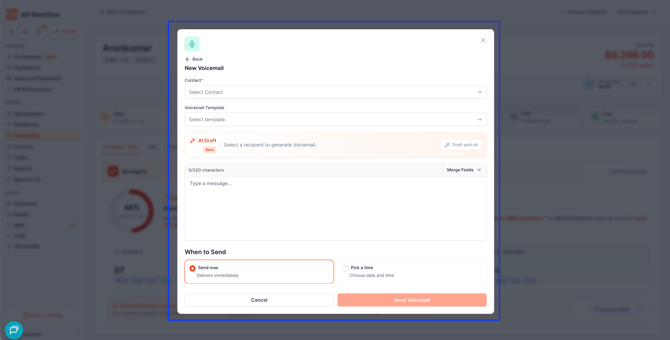
- The Voicemail Composer opens with:
- Send Now
- Pick a Time
Note: Best Time is not available for Voicemail.
How each scheduling works
Send Now sends the communication immediately after confirmation.
It is available for:
- SMS
- Voicemail
Best Time uses AI to recommend an optimal date and time for an Email based on the customer's historical email engagement.
-
It is available for Email only.
Pick a Time allows you to choose a specific future date and time for the communication.
It is available for:
- SMS
- Voicemail
How Best Time Works
Best Time analyzes available customer email engagement history to determine when an Email is most likely to receive engagement.
The system considers:
- Email opens
- Email replies
When sufficient engagement history is available, the system provides:
- A recommended date
- A recommended time
The recommendation appears in the Email scheduling section.
What Happens When There Isn't Enough Engagement History?
If a customer is new or there isn't sufficient email engagement history, the system uses a default recommendation.
The default recommendation is:
-
Today or the next working day at 8:00 AM
-
This follows the standard 8:00 AM–11:00 AM sending window.
The Email Composer also displays an informational message explaining that there isn't enough open or reply activity to generate a personalized recommendation.
Once sufficient engagement history becomes available, the default recommendation is replaced with an AI-generated Best Time recommendation.
Scheduling a Communication
When Pick a Time is selected:
- You must select a date.
- You must select a time.
- The selected date and time must be in the future.
- A communication cannot be scheduled for a date or time that has already passed.
Scheduled communications are sent according to the applicable business date, time, and time zone.
Viewing Scheduled Communications
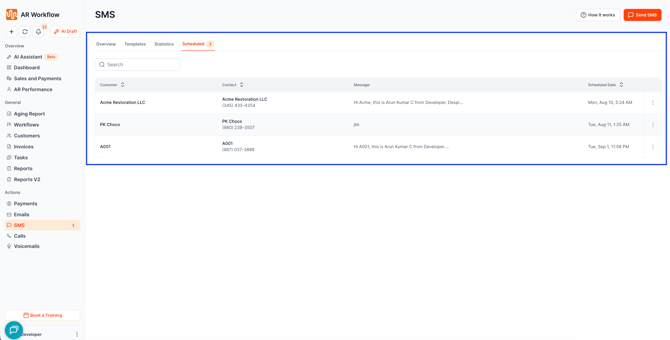
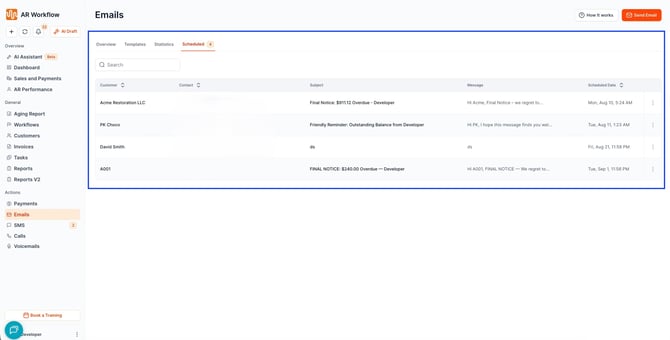
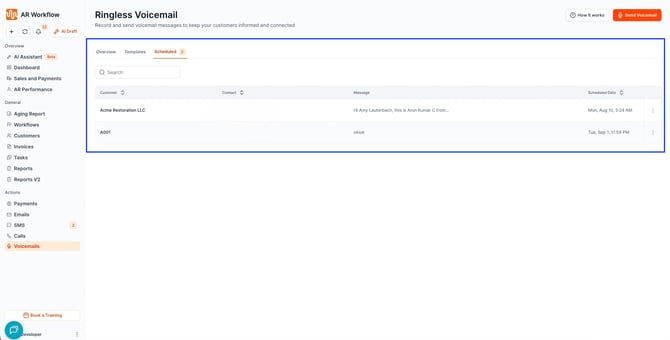
Scheduled communications can be viewed and managed from dedicated Scheduled tabs. These tabs display communications that are scheduled for future delivery.
Each Scheduled tab displays:
- Customer
- Contact
- Subject for Email
- Message Preview
- Scheduled Date & Time
A Search option is also available to help users locate a specific scheduled communication.
Frequently Asked Questions
Can I send Email, SMS, and Voicemail?
Yes. AR Workflow supports all three communication types.
What is “Send Now”?
Send Now sends the communication immediately after confirmation.
What is “Pick a Time”?
Pick a Time allows you to choose a specific future date and time for the communication.
What is “Best Time”?
Best Time uses available customer email engagement history to suggest an optimal date and time for sending an Email.
Is Best Time available for SMS or Voicemail?
No. Best Time is currently available for Email only.
What happens if there isn't enough engagement history?
AR Workflow uses a default recommendation of 8:00 AM for today or the next working day, within the standard 8:00 AM–11:00 AM sending window.
Can I choose my own date and time?
Yes. Select Pick a Time and choose the future date and time you want.
Can I send a communication immediately?
Yes. Select Send Now.
What is Send via 3 Channels?
Send via 3 Channels is an option available from the AI Assistant Priority Queue that allows you to access the Email, SMS, and Voicemail communication options.
Can I edit a scheduled communication?
Yes. You can edit scheduled Email, SMS, and Voicemail communications before they are sent.
Can I delete a scheduled communication?
Yes. Scheduled communications can be deleted before they are sent.
Can I preview a scheduled communication?
Yes. You can preview scheduled communications before they are sent.
Can I search for a scheduled communication?
Yes. Each Scheduled tab includes a Search option.
Will Best Time always recommend 8:00 AM?
No. 8:00 AM is the default when there isn't enough engagement history. When sufficient engagement data is available, AR Workflow can provide an AI-generated recommendation based on the customer's email opens and replies.