![cc5404e7b75e6d484a23b7d9f19a2774.png]](https://support.arworkflow.com/hs-fs/hubfs/cc5404e7b75e6d484a23b7d9f19a2774.png?height=50&name=cc5404e7b75e6d484a23b7d9f19a2774.png)
Accessing Your Projects
There are two ways to access projects in AR Workflow:
View Projects for All Customers
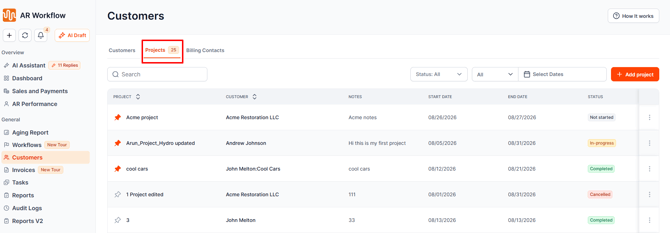
- Go to the Customers tab in the main navigation.
- Once the customer list opens, click the Projects option at the top of the page.
- You’ll see all projects across your customers, including the customer name, project name, dates, and status.
View Projects for a Specific Customer
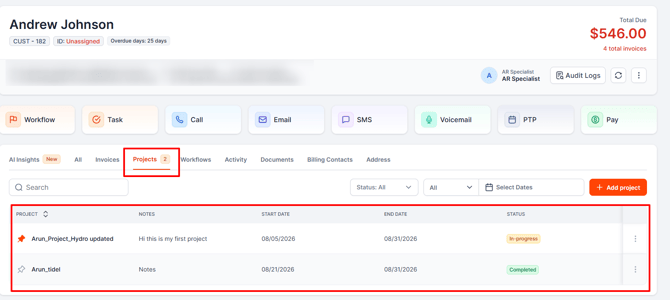
- Go to the Customers tab in the main navigation.
- From the customer list, find and select the customer you want to view.
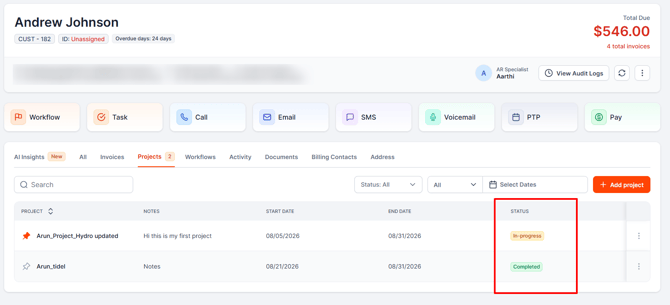
- Their Customer Details page will open. Click the Projects tab.
- From here, you can view the customer’s current projects, including their details and status, and manage or edit project information.
Finding a Project
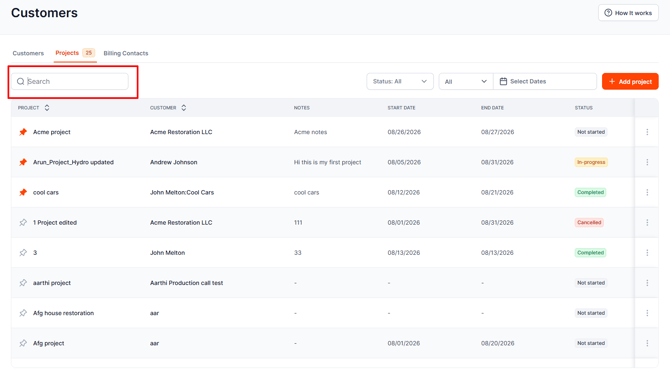
If you have a large number of projects, you can use the available search and filtering options to narrow down the list.
You can search by:
- Project name
- Customer name
You can also use the available filters to help locate the project you need.
Managing a Project
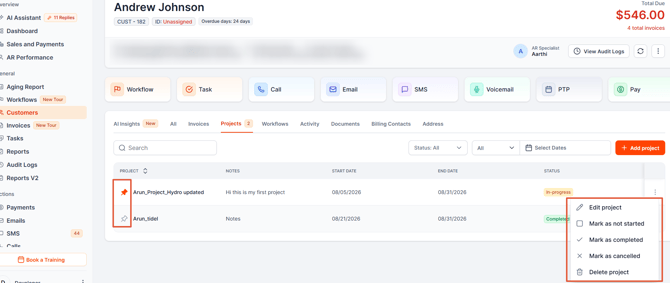
Once you locate a project, you can open it to view its details and make changes as needed.
From the project section, you can:
- View project details
- Edit project information
- Update the project status
- Pin or unpin the project
- Delete the project
These options allow you to keep project information current as the project progresses.
Project Status
Project status can be updated as the project changes. Keeping the status current makes it easier to understand where each project stands when reviewing your Projects list.
Keeping Projects in Sync with QBO
Project information in AR Workflow can sync with QuickBooks Online, helping keep project records aligned between the two systems.
When project information changes, the sync helps ensure that the corresponding QBO project reflects those updates.
This reduces the need to maintain the same project information separately in both systems.
Project Addresses on Invoices
Project information can also make invoice creation easier.
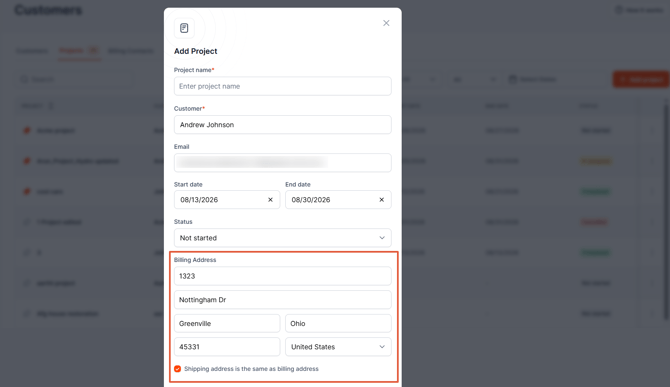
When creating an invoice for a project, AR Workflow can use the Project Address stored in the project's details to pre-populate the invoice address.
This means you don't have to manually re-enter the project address each time you create an invoice.
Frequently Asked Questions
Where do I find my projects?
Go to the Customer tab and select the Projects tab.
Can I search for a project?
Yes. You can search by project name or customer name, and use the available filters to narrow down the results.
Can I edit a project?
Yes. Open the project and update its details as needed.
Can I change a project's status?
Yes. Project status can be updated from the Projects area.
Can I pin a project?
Yes. You can pin and unpin projects to make frequently accessed projects easier to find.
Can I access project information from the customer record?
Yes. Project-related sub-customers have a dedicated Project Details section where project-specific information can be viewed and modified.
Do project changes sync with QuickBooks Online?
Yes. Project changes can sync with QBO to help keep project information aligned between the two systems.
Does the project address appear when creating an invoice?
Yes. The Project Address can be used to pre-populate the invoice address when creating an invoice for the project.