![cc5404e7b75e6d484a23b7d9f19a2774.png]](https://support.arworkflow.com/hs-fs/hubfs/cc5404e7b75e6d484a23b7d9f19a2774.png?height=50&name=cc5404e7b75e6d484a23b7d9f19a2774.png)
The Customers tab provides a centralized view of your customer records and the tools you need to manage accounts receivable in one place. From here, you can view and update customer details, assign AR Specialists and workflows, manage billing contacts, communicate with customers, and export customer records. Customer information also syncs with QuickBooks Online, helping keep records aligned across both systems.
For the best experience, make sure each customer profile includes a mobile number. Communication features that rely on contacting the customer directly, including SMS and voicemail, require a valid phone number to be saved in the Mobile field. Keeping this information up to date helps ensure workflows and customer communications can run as expected.
AR Workflow also helps you stay on top of incomplete customer profiles by identifying customers who are missing contact information. This makes it easier to update missing details and keep customer records ready for communication and workflow activity.
Accessing Customers
- Log in to AR Workflow.
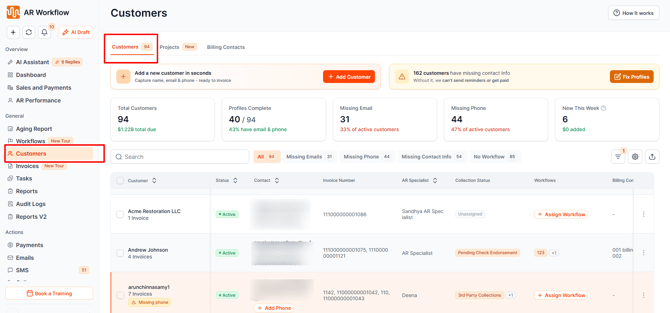
- Select Customers from the main navigation.
The Customers tab opens by default and displays active customers.
Customer Summary
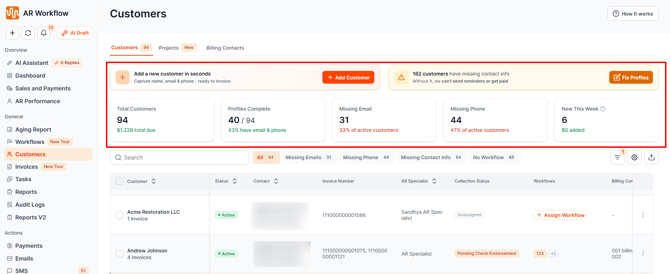
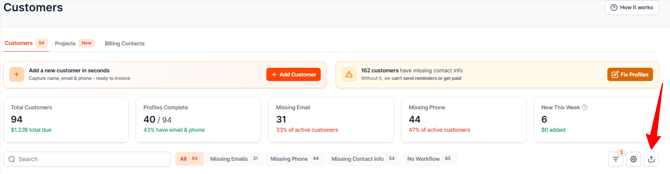
The summary cards at the top of the Customers page give you an overview of your customer records.
Depending on your selected filters, you can see:
- Total Customers: The number of customers and their total outstanding balance.
- Profile Complete: The number and percentage of customers with both an email address and phone number.
- Missing Email: The number and percentage of active customers without an email address.
- Missing Phone: The number and percentage of active customers without a phone number.
- New This Week: The number of customers created during the current week and their total outstanding value.
Managing Customer Records
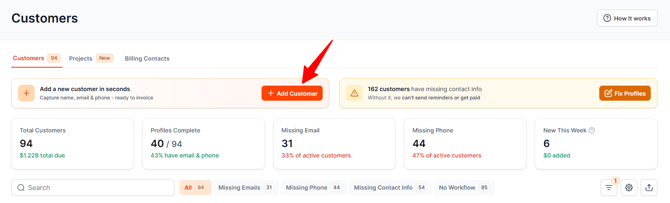
Select Add Customer to create a new customer.
When creating a customer, you can add:
- Customer information and display name
- Email and phone details
- Billing and shipping addresses
- Customer ID
- AR Specialist
- Sub-customer and billing preferences
If you do not enter a Customer ID, AR Workflow will automatically generate one.
You can also edit existing customer information from the customer list by clicking the 3 dots on the far right.
Customer List
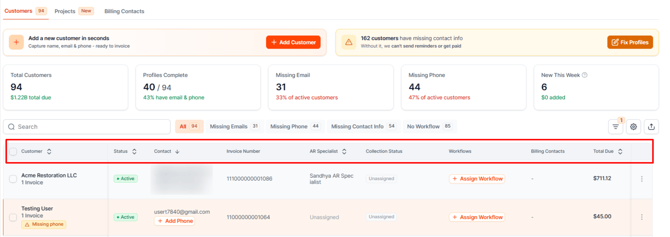
The Customers table provides an overview of each customer and their collection information.
Depending on the columns displayed, you can see:
- Customer name
- Customer status
- Email and phone information
- Invoice Number
- Billing contacts
- Total amount due
- Assigned workflow
- Assigned AR Specialist
- Collection status
If a customer is missing an email or phone number, the corresponding Add Email or Add Phone Number option is displayed so you can update their contact information.
If no workflow is assigned, an Assign Workflow option is available from the customer row.
Finding Customers
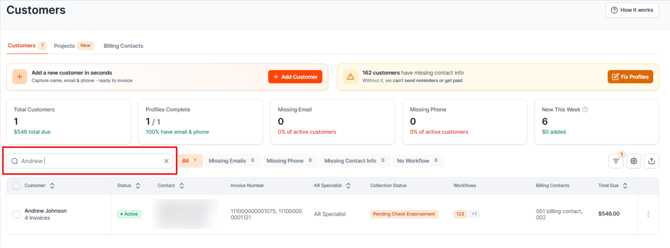
Use the search bar to quickly find customers by:
- Customer name
- Email address
- Phone number
- Invoice number
The customer list updates based on your search.
Identifying Missing Contact Information
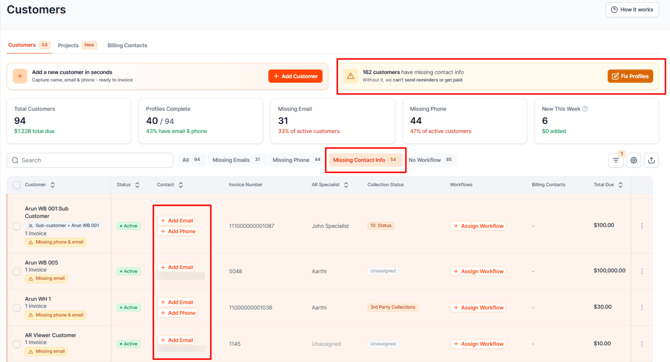
AR Workflow highlights customers who are missing important contact information.
The Missing Contact Info section shows how many customers are missing an email address or phone number.
Select Fix Profiles to filter the customer list to active customers who are missing contact information.
Once the required contact information has been added, those customers will no longer appear in the missing contact information results.
Managing Billing Contacts
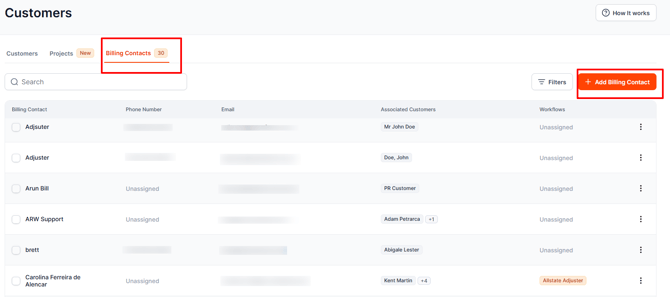
Select the Billing Contacts tab to view billing contacts across your customers.
Customers can have multiple billing contacts. Billing contacts can be added, edited, or removed from the customer's record.
Billing contacts can also be selected when assigning workflows, allowing workflow communications to be sent to:
- The Customer
- Billing Contacts
- All Contacts
Each contact can have their own communication history.
Assigning AR Specialists and Workflows
You can assign an AR Specialist or Workflow to individual customers from the customer list.
If you need to update several customers at once, use Bulk Actions.
Bulk Actions
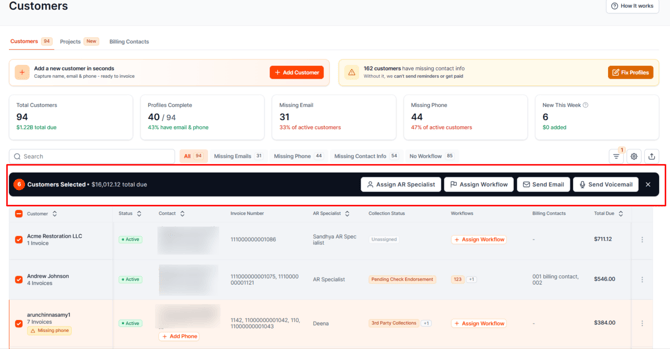
Select the checkbox next to each customer you want to update. You can also use the checkbox in the table header to select all customers currently displayed.
Once customers are selected, the bulk action toolbar allows you to:
- Assign an AR Specialist
- Assign a Workflow
- Send a bulk email
- Send a bulk voicemail
The toolbar also shows the number of selected customers and their combined amount due.
Filtering Customers
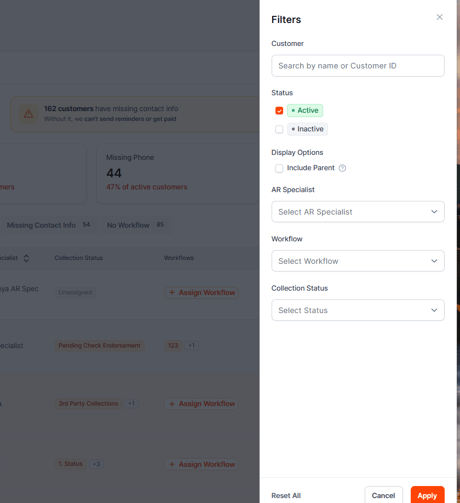
Select Filters to narrow down the customer list.
You can filter customers by:
- Customer name
- Status
- AR Specialist
- Workflow
- Collection Status
After selecting your filters:
- Apply saves the selected filters and updates the customer list and summary cards.
- Cancel removes your current filter changes and returns to the previously applied filters.
- Reset All clears the filters and returns the customer list to its default view.
Exporting Customer Information
Select Export to export customer information based on your current search and filter selections.
You can export:
- All customer records currently displayed
- Selected customer records
- Customer details and related information
The exported file can be downloaded as a CSV file.
Why This Matters
Managing customer records, assigning AR Specialists and workflows, and keeping contact information up to date can all be done from the same Customers tab, without moving between separate tabs or screens. Bulk actions let you update multiple customers at once, and the Missing Contact Info tools make it easy to keep profiles ready for communication and workflow activity. Together, these tools reduce the time spent hunting for customer information and increase the time available for actually managing accounts.
Customer Permissions
What you can do in the Customers module depends on your user role and permissions.
Owners, Admins, and AR Managers can view and manage customers, including creating and editing customer records and using customer actions.
AR Specialists can create and edit customers based on their assigned permissions. Depending on their settings, an AR Specialist may be able to manage only assigned customers or all customers.
AR Viewers can view customer records but cannot create or edit customers or perform customer management actions.
Frequently Asked Questions
Can I assign an AR Specialist to multiple customers at once?
Yes. Select the customers you want to update and use the bulk action toolbar to Assign AR Specialist.
Can I assign a workflow to multiple customers at once?
Yes. Select the customers and use the bulk action toolbar to Assign Workflow.
What happens if a customer does not have a workflow?
The Assign Workflow option appears in the Workflows column, allowing you to assign one directly from the customer list.
Can I assign a workflow to a billing contact?
Yes. When assigning a workflow, you can choose the Customer, Billing Contacts, or All Contacts as the recipient.
How do I find customers who are missing contact information?
Use the Missing Contact Info section and select Fix Profiles. This filters the list to active customers who are missing an email address or phone number.
If I create a customer in AR Workflow, will it sync to QuickBooks Online?
Yes. Customers created in AR Workflow are automatically synced to QuickBooks Online.
QuickBooks Online checks the customer's display name when determining whether a duplicate customer exists. If the same display name already exists, QuickBooks Online will prevent the duplicate record from being created. Different display names can result in a separate customer record, even if other information such as the email address or phone number is the same.
Do I need to enter a Customer ID when creating a new customer?
Yes, however If you don't enter a Customer ID, AR Workflow will automatically generate one for you.
How do I edit an existing customer's information?
From the customer list, click the 3 dots on the far right of that customer's row.
Why is it important to add a mobile number to a customer's profile?
Communication features that contact the customer directly, such as SMS and voicemail, require a valid phone number saved in the Mobile field. Without it, those workflows and communications can't run as expected.
What can I search for in the Customers tab?
You can search by customer name, email address, phone number, or invoice number, and the customer list will update based on your search.
What can I filter the customer list by?
You can filter by customer name, status, AR Specialist, workflow, and collection status.
What's the difference between Apply, Cancel, and Reset All when filtering?
Apply saves your selected filters and updates the customer list and summary cards. Cancel discards your current filter changes and returns to the previously applied filters. Reset All clears all filters and returns the list to its default view.
What do the summary cards at the top of the Customers page show?
Depending on your selected filters, you can see Total Customers (and their total outstanding balance), Profile Complete, Missing Email, Missing Phone, and New This Week.
What can I export from the Customers tab?
You can export all customer records currently displayed, only selected records, or customer details and related information, based on your current search and filter selections. Exports download as a CSV file.
Can I send a bulk email or voicemail to multiple customers?
Yes. After selecting customers with the checkboxes, the bulk action toolbar lets you send a bulk email or bulk voicemail in addition to assigning an AR Specialist or Workflow.