![cc5404e7b75e6d484a23b7d9f19a2774.png]](https://support.arworkflow.com/hs-fs/hubfs/cc5404e7b75e6d484a23b7d9f19a2774.png?height=50&name=cc5404e7b75e6d484a23b7d9f19a2774.png)
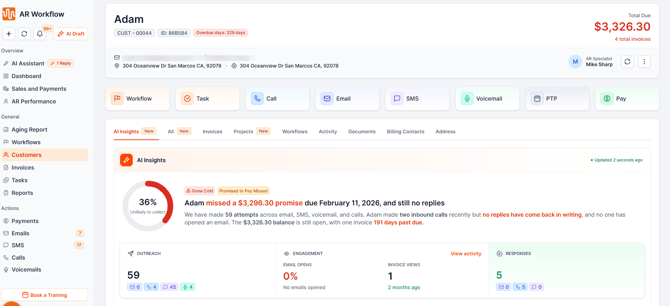
The customer profile, located within the Customers tab, can be accessed by selecting a customer. It brings the information and tools you need to manage an account together in one place, making it easier to view customer details, take action, and stay on top of the account without having to move between different tabs.
Getting Around the Customer Profile
Once you open a customer profile, you’ll find quick actions at the top of the page that let you take common actions without leaving the customer account. From here, you can start a workflow, create a task, make a call, send an email or SMS, leave a voicemail, record a Promise to Pay, or process a payment.
Below the quick actions, the customer profile is organized into dedicated tabs:
- AI Insights
- All
- Invoices
- Projects
- Workflows
- Activity
- Documents
- Billing Contacts
- Address
Each tab gives you access to a different part of the customer account, while the All tab brings many of these areas together for a broader view.
AI Insights Tab
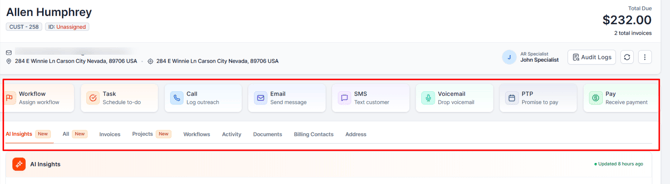
The AI Insights tab gives you a quick way to understand a customer’s current account status, engagement, and collection activity, helping you determine what action may be most useful next.
From AI Insights, you can:
- View an AI-generated summary of the customer and their current account activity.
- Review the customer’s Collectability Score from 0–100 to help assess the likelihood of collecting outstanding payments.
- Monitor live engagement information, including outreach attempts, email opens, invoice views, customer replies, and inbound calls.
- See a recommended next action, such as Email, SMS, Call, or Voicemail, based on the same recommendation logic used by the Priority Queue.
- Keep track of changing customer activity, with AI-generated summaries refreshing when balances or engagement change.
All Tab
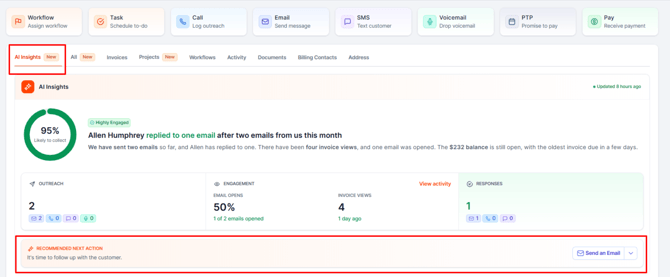
The All tab brings the customer’s key information together on one scrollable page, so you can review and manage different parts of the customer account without opening each area separately.
The All tab includes:
- Invoices – Review invoices for the customer and their sub-customers, switch between Compact and Detailed views, filter by Payment Status or Aging Date, review invoice details, and identify overdue balances.
- Collection Status – View the Collection Status assigned to invoices and assign a status when one has not yet been added.
- Workflows – See which collection workflow is assigned to each invoice, identify invoices without a workflow, and assign a workflow directly from the invoice. AI Workflow is also available where applicable.
- Activity – Review customer activity, including communications, notes, tasks, payments, and workflow activity.
- Documents – View documents associated with the customer.
- Billing Contacts – Review the billing contacts associated with the customer.
- Address – View the billing and shipping address information associated with the customer.
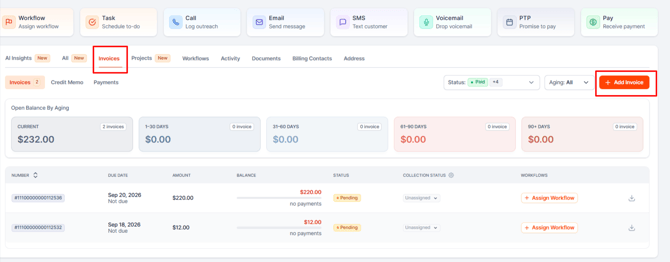
Within the Invoices section, you can review the invoice number, due date, amount owed, balance, payment status, Collection Status, and assigned workflow. This gives you a clearer picture of what is happening with each invoice and what collection action is currently being taken.
Because the information and available functionality from these areas remain accessible from the All tab, you can review multiple parts of the customer account from one place without repeatedly switching between tabs.
Invoices Tab
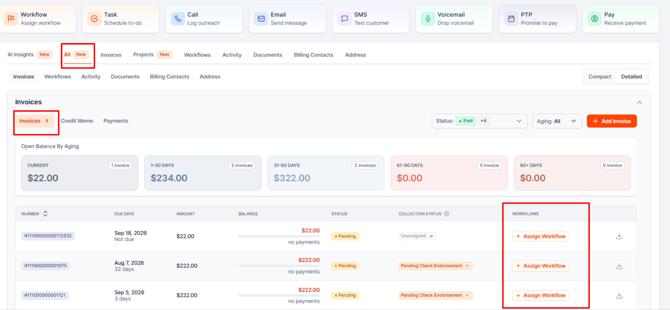
The Invoices section provides a focused workspace for managing the customer’s invoices. You can access invoices for the selected customer and their sub-customers, review invoice details, manage collection information, and take action directly from the customer profile.
From the Invoices section, you can:
- View the customer’s invoices and invoice count, including invoices for sub-customers.
- Switch between Compact and Detailed views depending on how much information you want to see.
- Review key invoice details, including the invoice number, due date, amount owed, balance, and payment status.
- Filter invoices by Payment Status or Aging Date to quickly find specific invoices or identify overdue balances.
- Review and assign Collection Status directly from the customer profile.
- See which collection workflow is assigned to each invoice and identify invoices that do not have a workflow.
- Assign a collection workflow directly to an invoice when collection action is needed.
- Download existing invoices when needed.
- Create a new invoice directly from the customer profile.
When you create a new invoice, the customer’s information is automatically populated, so you don’t need to enter the customer details from scratch.
The Collection Status and Workflow information are displayed alongside the invoice details, making it easier to understand what is happening with an invoice and what collection action is currently managing it.
Projects Tab
The Projects tab provides a centralized place to view and manage projects associated with the customer. It gives you a clear overview of your projects while making it easy to find a specific project, update its status, and manage project details.
From the Projects tab, you can:
- View the projects associated with the customer, including the project name, customer, notes, start date, end date, and current status.
- Search for a project by project name or customer name.
- Filter projects by status, including Not Started, In Progress, Completed, and Cancelled.
- Use date filters or select a custom date range to narrow down the projects you want to view.
- Create a new project by selecting Add Project.
- View or edit project details, including project information, dates, notes, and status.
- Update a project’s status as work progresses, including marking it as Not Started, In Progress, Completed, or Cancelled.
- Pin projects you access frequently so they appear at the top of the project list, or unpin them when they are no longer needed.
- Delete projects when they are no longer required.
When creating a project, selecting a customer automatically populates the available billing and shipping address information from that customer’s profile. You can review or modify these addresses before saving the project.
Each project remains associated with its customer, making it easier to keep project information connected to the appropriate account and manage project activity from one place.
.png?width=670&height=204&name=ARWorkflow-09-10-2026_10_55_PM%20(1).png)
Workflows Tab
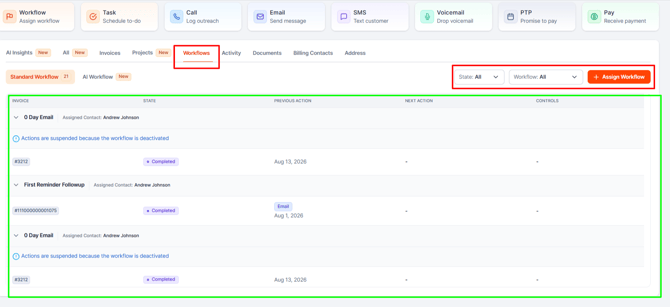
The Workflows tab gives you a dedicated view of the collection workflows associated with the customer.
From here, you can:
- Assign workflows
- View the current workflow status
- Pause or resume workflows
- Stop workflows
- Review previous workflow actions
- See upcoming workflow actions
This gives you a clearer picture of where the customer is within the collection process and what actions have already taken place or are scheduled next.
Activity Tab
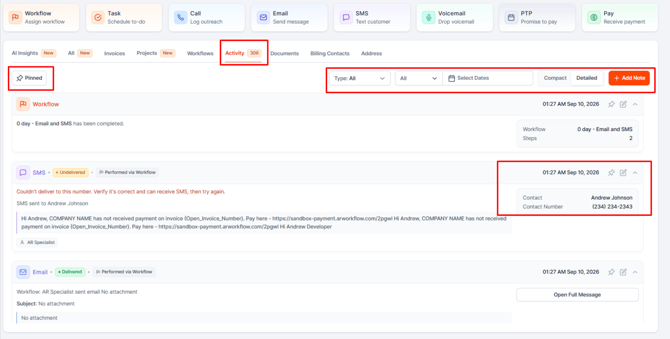
The Activity tab gives you a complete history of the activity associated with the customer. It brings customer communications, notes, tasks, payments, workflow activity, and other interactions together in one place, making it easier to see what has happened with the account and keep track of ongoing collection efforts.
From the Activity tab, you can:
- Review customer activity: See a chronological history of interactions and actions associated with the customer.
- Review communications: View emails, SMS messages, calls, and voicemail activity so you can see what communication has taken place with the customer.
- Add and review notes: Add notes to document important information, follow-ups, customer conversations, or other details that should be kept with the account.
- Track tasks: Review tasks associated with the customer and see activity related to follow-up work.
- Review payment activity: See payment-related activity associated with the customer to help you understand what has taken place on the account.
- Track workflow activity: Review workflow-related activity to see actions and updates associated with the customer's collection process.
- Review voice notes: Access voice notes that have been added to the customer's activity history.
- Filter activity: Narrow the activity history by activity type to quickly find specific interactions or actions.
- Filter by date: Use the date filter to focus on activity that occurred during a specific period.
- Switch between Compact and Detailed views: Choose the view that works best for how much information you want to see at a time.
Activities can include notes, emails, SMS messages, calls, tasks, workflows, payments, and voice notes.
Finding Customer Notes
Customer notes are managed through Activity.
To find or add a note:
- Open the customer profile.
- Select Activity.
- Filter the activity by Notes.
- Expand an existing note to view its details, or select Add Note to create a new one.
Documents Tab
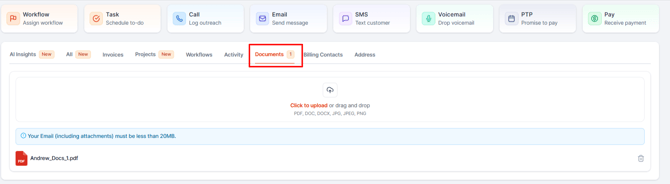
The Documents tab gives you a central place to manage files associated with the customer.
You can:
- Upload documents
- Download documents
- Delete documents
- Identify file types using the available file icons
A document count is also displayed on the tab, making it easy to see when files are associated with the customer.
Billing Contacts Tab
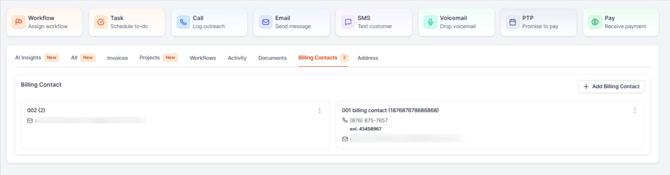
The Billing Contacts tab lets you manage the people associated with the customer account.
You can add, edit, and delete billing contacts and manage multiple contacts when more than one person needs to be associated with the account.
This makes it easier to keep contact information organized and ensure the right people are connected to the customer record.
Address Tab
The Address tab contains the customer’s address information, including:
- Billing Address
- Shipping Address
- City
- State or Province
- Postal Code
- Country
Keeping this information up to date helps ensure customer records contain the details needed for billing and other account-related activities.
.png?width=670&height=140&name=ARWorkflow-09-10-2026_11_01_PM%20(1).png)
Make the Customer Profile Work for You
The customer profile is designed to give you flexibility in how you manage an account. Use the All tab when you want a broader view of the customer, or open an individual tab when you need to focus on a specific area.
You can quickly move from reviewing an invoice to checking activity, reviewing documents, managing contacts, or taking action on a workflow, all while staying within the same customer profile.
The result is a more connected way to manage customer accounts, with the information you need organized around the customer rather than scattered across different areas of AR Workflow.
Frequently Asked Questions
How do I access a customer profile?
Go to the Customers tab and select the customer you want to view.
What is the All tab?
The All tab brings key areas of the customer profile together on one scrollable page, allowing you to review information without switching between individual tabs.
Can I manage invoices from the All tab?
Yes. You can review invoice information, filter invoices, check collection status, view assigned workflows, access payment information, download invoices, and assign workflows directly from the Invoices section.
Can I assign a workflow directly to an invoice?
Yes. Select Assign Workflow from the invoice list and choose from the available collection workflows.
Where can I find customer notes?
Customer notes are available in the Activity tab. You can filter Activity by Notes to find existing notes or add a new one.
Can I access information for a customer’s sub-customers?
Yes. Invoice and aging information can include the selected customer and their sub-customers, giving you a broader view of the account when needed.